1. Prepare a PSD for each layout
Use a square, portrait, and landscape template with the same named layers: product_name, price, and product_image. Each PSD already contains its intended layout; changing the canvas size alone does not rearrange the design.
| Layout | Output dimensions |
|---|---|
| Square | 1080 × 1080 px |
| Portrait | 1080 × 1350 px |
| Landscape | 1200 × 628 px |
2. Prepare one row per product
Keep the header row in a UTF-8 CSV. Use the included 20-row product list for the sample, then replace the values with your own product data.
| Column | Value used in the PSD |
|---|---|
product_name | Text for the product-name layer |
price | The price exactly as you want it displayed, including currency |
product_image | A filename matching a local image you select |
Select the local image files along with the CSV. Filenames must match product_image values. The workflow does not fetch images from URLs.
3. Match columns to layers
Open a template in the batch editor and map each CSV column to its named layer. If the template needs changes, edit the PSD in PhotoCraft online first, save a copy, and load that copy into the batch editor.
PhotoCraft online4. Review the preview, then export
Check the first rows for text wrapping, readable prices, image cropping, and missing assets. Use the same CSV with each of the three layouts. Twenty successful rows in each layout produce 60 PNGs.
Inspect each row’s status and download the ZIP of successful outputs. Resolve missing files or unsupported template features before repeating failed rows. Three custom rows can be previewed free; the public product sample can be tried separately.
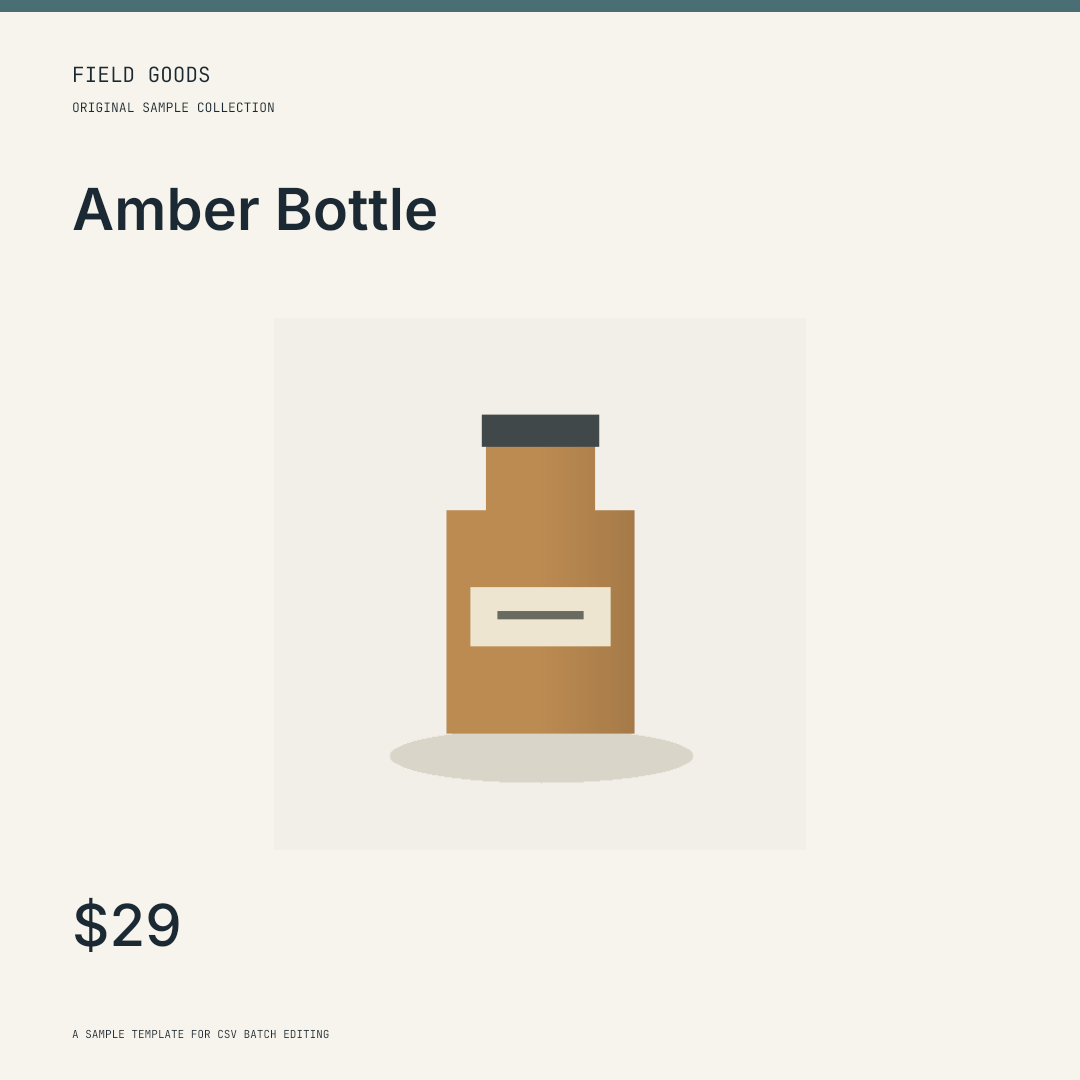
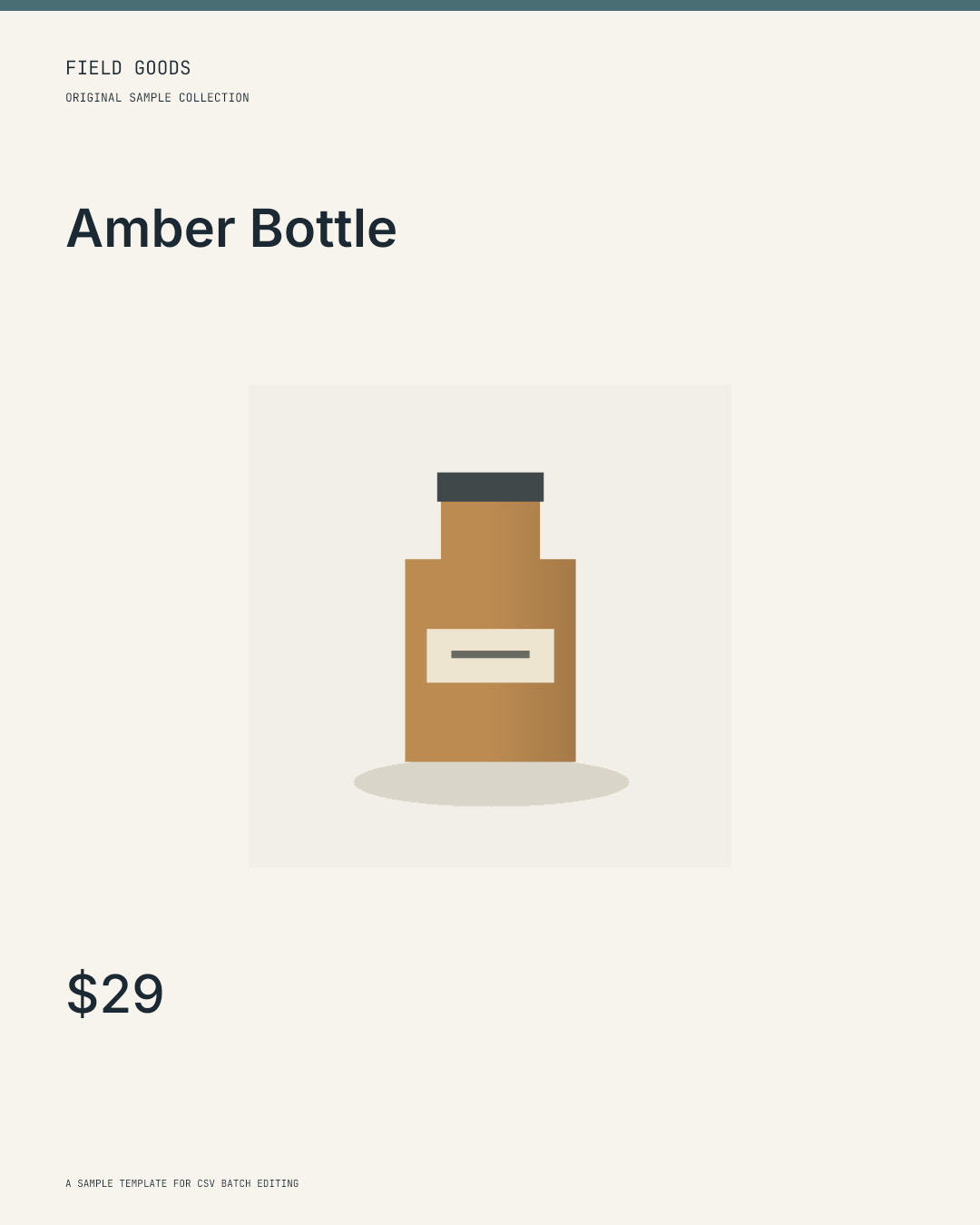
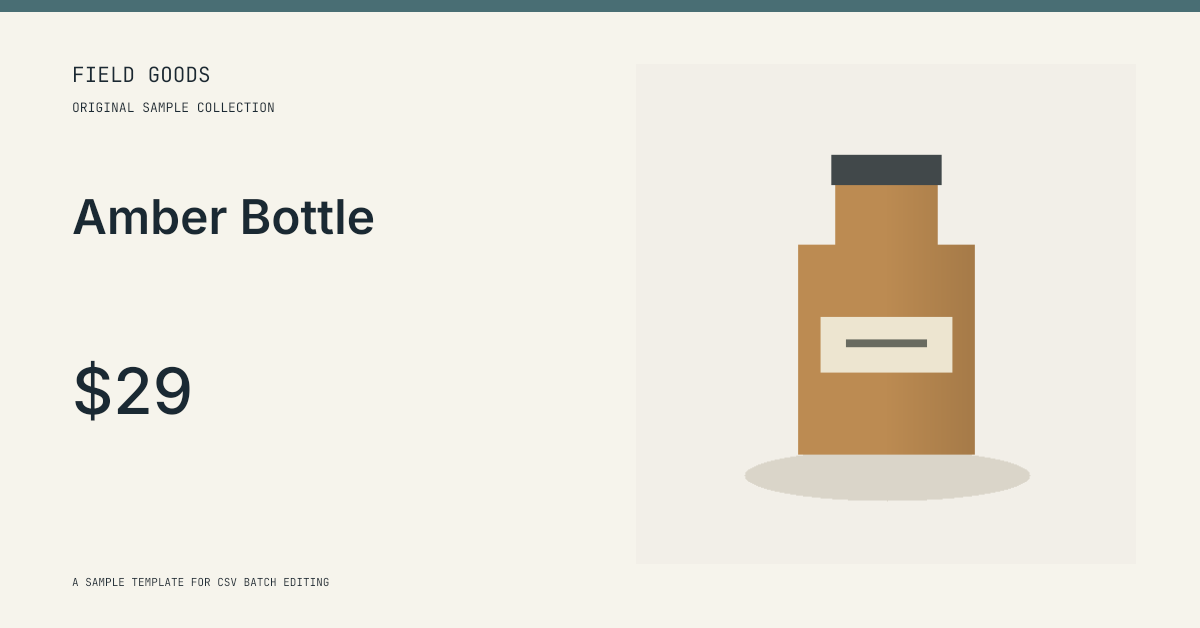
In our October 10, 2026 test on a Mac with Chrome 154, the 20-row sample produced 60 PNGs with no failed rows and downloaded as one ZIP. The browser showed 29 seconds for rendering. These are actual sample outputs; speed depends on your device and template. This local workflow does not use AI credits.
5. Save the mapping for the next product list
Use a saved mapping when you update prices or add products. Load the same template, select the new CSV and local images, and preview again. Subscribers can keep mapping metadata in their Alphaize account.
Rendering runs in your browser without AI generation calls. File contents are not uploaded when you save a mapping.
Run the same example locally
The independent example includes original PSDs, the CSV, images, a Node command and fixed-source WASM build instructions. Build the adapter first, then run this command from the repository root.
node scripts/run-batch.mjs --out generated/full6. Check sample and font licenses
The sample PSD layouts, product illustrations, and CSV are original Alphaize examples. The pack includes their license and the notices for bundled fonts. Use only customer images, templates, and fonts that you have permission to process.
Read the sample pack license and font noticesPhotoCraft 0.5.0 is early alpha software. Missing fonts, text wrapping, smart objects, masks, and layer effects can change a PSD’s appearance. Inspect the preview and downloaded file; keep your original template.